Why Meta Ads Business Manager Feels So Complicated (And How to Fix That)
If you’ve ever tried to run paid ads on Facebook or Instagram, you’ve likely run into the meta ads business manager — the central hub where ad accounts, pages, team members, and billing all live together.
Here’s a quick breakdown of what it does and how to use it:
What is Meta Business Manager?
- A free platform from Meta that lets you manage your Facebook pages, Instagram accounts, and ad accounts in one place
- Keeps your personal Facebook profile separate from your business assets
- Lets you give team members or agencies access without sharing your personal login
What can you do with it?
- Create and manage multiple ad accounts
- Add team members and set their permission levels
- Share assets with partner agencies
- View billing and payment settings across accounts
- Run ads on Facebook, Instagram, Messenger, and WhatsApp
Who needs it?
- Any business running paid ads on Meta platforms
- Agencies managing ads for multiple clients
- Teams where more than one person handles advertising
Running ads without Business Manager is possible — but messy. You lose control over who sees what, billing gets tangled, and sharing access with a team or agency becomes a security risk.
The reality is that most small business owners find the Meta ecosystem confusing. There are multiple tools — Business Manager, Ads Manager, Business Suite — and it’s not always clear which one does what or where to even log in.
That confusion is exactly what this guide solves.
I’m Fernando Larez, a marketing director and digital strategist based in Hollywood, Florida, with hands-on experience running campaigns through the meta ads business manager across multiple industries. In this guide, I’ll walk you through everything — from setup to troubleshooting — so you can stop guessing and start getting results.
Common meta ads business manager vocab:
Demystifying the Ecosystem: Meta Ads Business Manager vs. Ads Manager
Navigating Meta’s suite of business tools can feel like wandering through a maze of similarly named platforms. It is incredibly common for business owners in South Florida—from local retail shops in Hollywood to growing startups in Miami—to confuse Business Manager, Ads Manager, and Business Suite.
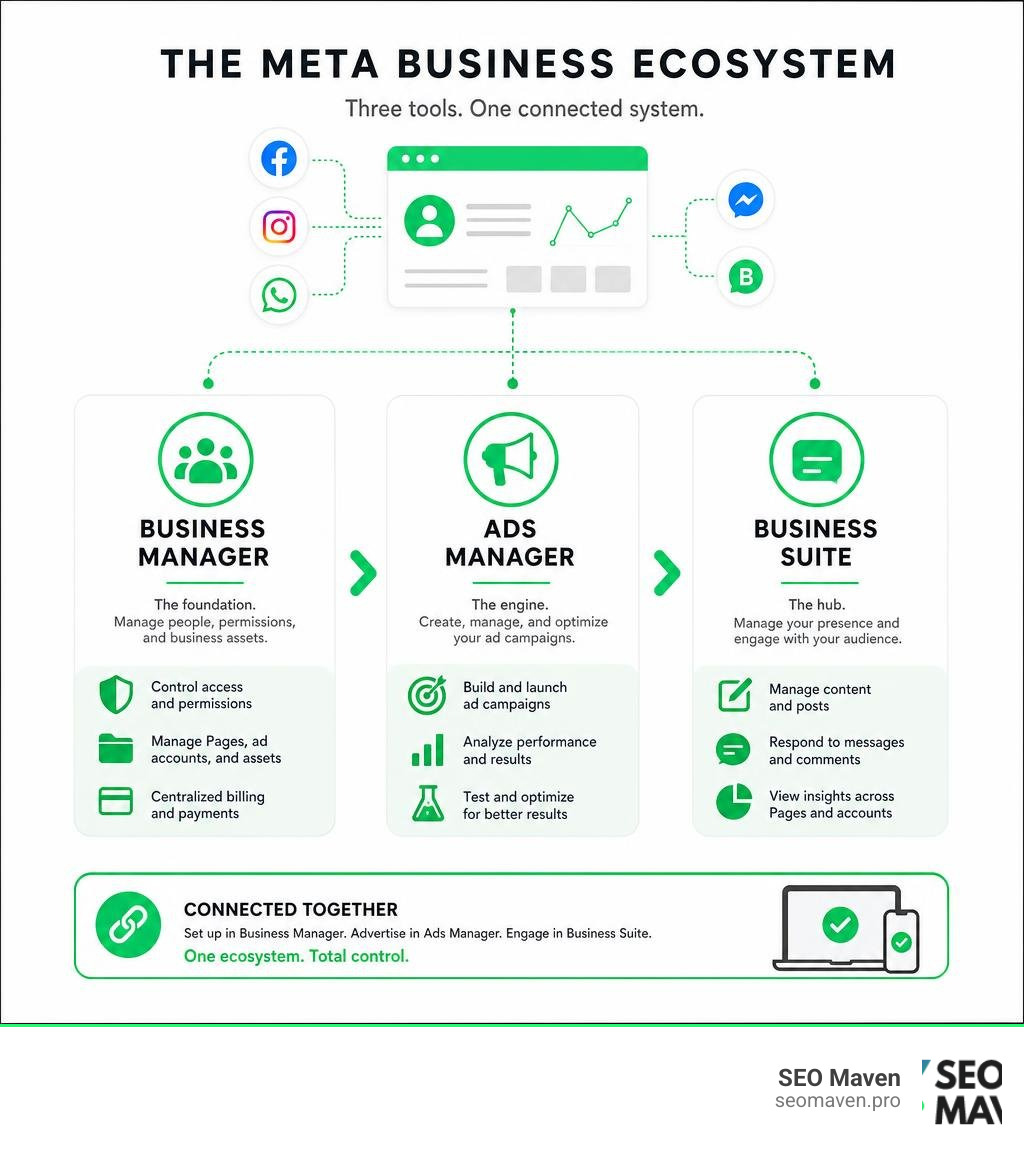
To clear up the confusion, let’s look at how these three core components interact. Think of the meta ads business manager as the overarching corporate office. It is the administrative shell where you manage security, permissions, pages, pixels, and payment details.
Inside that corporate office is the creative department: Meta Ads Manager. This is the specific tool where you actually build, launch, and optimize your paid campaigns. Finally, there is Meta Business Suite, which is geared toward day-to-day organic content management and customer communication.
For a deeper dive into how these tools stack up against other ad platforms, check out our guide on Meta Business Ad Manager vs the World. If you are currently struggling to make sense of the dashboard, you will also appreciate our walkthrough on How to Navigate Meta Ad Manager Without Crying.
To help visualize where you should spend your time depending on your goals, we’ve broken down the key differences below, adapted from insights on How to Use Meta Ads Manager & Business Suite | Step-by-Step Guide [2026] :
| Feature / Capability | Meta Business Manager | Meta Ads Manager | Meta Business Suite |
|---|---|---|---|
| Primary Purpose | Administrative control & asset sharing | Ad campaign creation & optimization | Organic content scheduling & inbox management |
| Target Audience | Business owners, agency partners, IT admins | Media buyers & performance advertisers | Social media managers & organic page admins |
| Key Assets Managed | Ad accounts, Pages, Pixels, team access | Campaigns, ad sets, ad creatives, custom audiences | Post calendars, direct messages, organic metrics |
| Advertising Depth | High-level billing & account creation | Full campaign creation & advanced targeting | Basic “boosting” of organic posts only |
The Role of Meta Business Suite
While the meta ads business manager handles backend permissions and Ads Manager runs your paid campaigns, Meta Business Suite is designed for page management. If you need to schedule organic posts, reply to customer comments, or check basic engagement metrics for your Facebook and Instagram profiles, Business Suite is your daily dashboard.
It is built for organic brand-building rather than performance advertising. It allows you to run light promotions (like “boosting” a post), but it lacks the granular targeting, advanced custom audience creation, and deep optimization features required to run a structured, profitable paid ad campaign.
Mobile vs. Desktop Ad Management
When it comes to managing your campaigns, where you work matters. Meta offers a robust desktop experience alongside the Meta Ads Manager mobile app.
The mobile app is incredibly popular with busy business owners. It has over 47,000 ratings on the iOS App Store (averaging 4.5 out of 5 stars) and more than 508,000 reviews on Google Play with over 10 million downloads. The app is a lightweight tool (around 106.9 MB on iOS and 109.4 MB on Android) that supports 33 languages, making it highly accessible for real-time tracking on the go. You can download it directly via the Meta Ads Manager App – App Store .
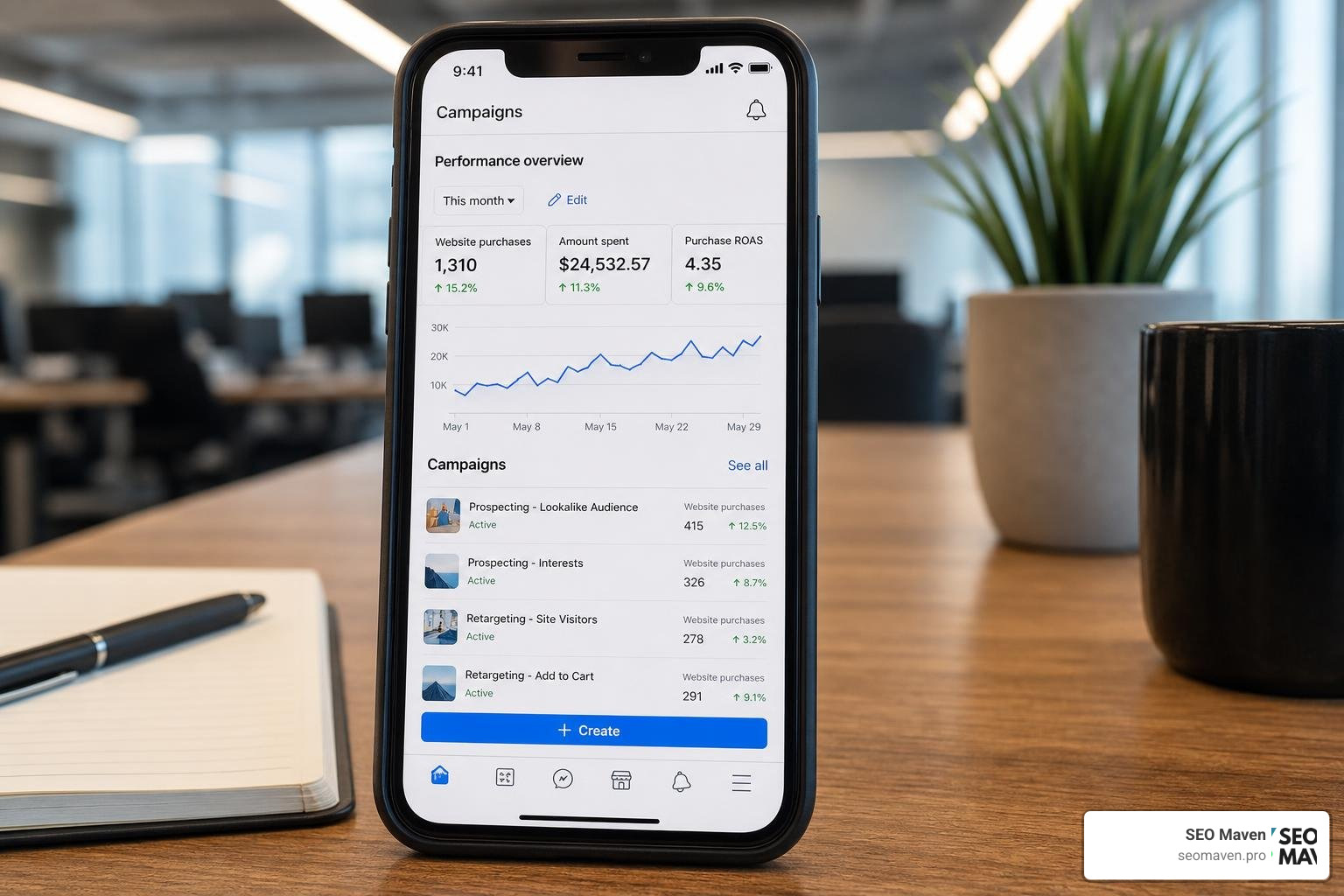
However, we strongly recommend using the desktop interface for initial campaign creation and deep optimization. The desktop layout gives you full access to advanced targeting parameters, breakdown reports, and complex asset organization. Use the mobile app as your digital safety net—perfect for pausing an underperforming ad during a weekend lunch in Fort Lauderdale, but not for building complex, multi-tiered ad sets from scratch.
Step-by-Step Setup and Asset Management
Setting up your digital advertising assets correctly from day one prevents major headaches later. A messy setup leads to pixel tracking errors, lost access, and security vulnerabilities. For a comprehensive look at running campaigns successfully, take a look at The Definitive Guide to Meta Ads Management.
Before you begin, ensure you have a personal Facebook profile to verify your identity, and a primary Facebook Page representing your business that is not already owned by another Business Manager account.
How to Configure Your Meta Ads Business Manager Account
To set up your account manually:
- Go to Meta Ads or Meta for Business (formerly Facebook for Business) and click Create Account.
- Log in using your personal Facebook credentials (this is purely for identity verification; your personal profile will remain separate and private).
- Enter your business name, your name, and your business email address, then click Next.
- Select your primary Facebook Page or create a new one to represent your business.
- Fill out your business details, including your primary country (US), time zone, and vertical.
For developers or advanced users looking to automate this programmatic setup, you can also manage this via the API. According to the Get Started – Business Management APIs documentation, creating a new Business Manager programmatically requires sending a POST request to the /USER_ID/businesses endpoint with your access token, business name, vertical, primary page ID, and time zone. However, if you already have an active manager, Meta recommends using your existing dashboard permissions rather than creating duplicate accounts.
Assigning Roles and Permissions
One of the greatest security benefits of using the meta ads business manager is the ability to assign precise, tiered user permissions. You should never share your personal login credentials with employees or external partners.
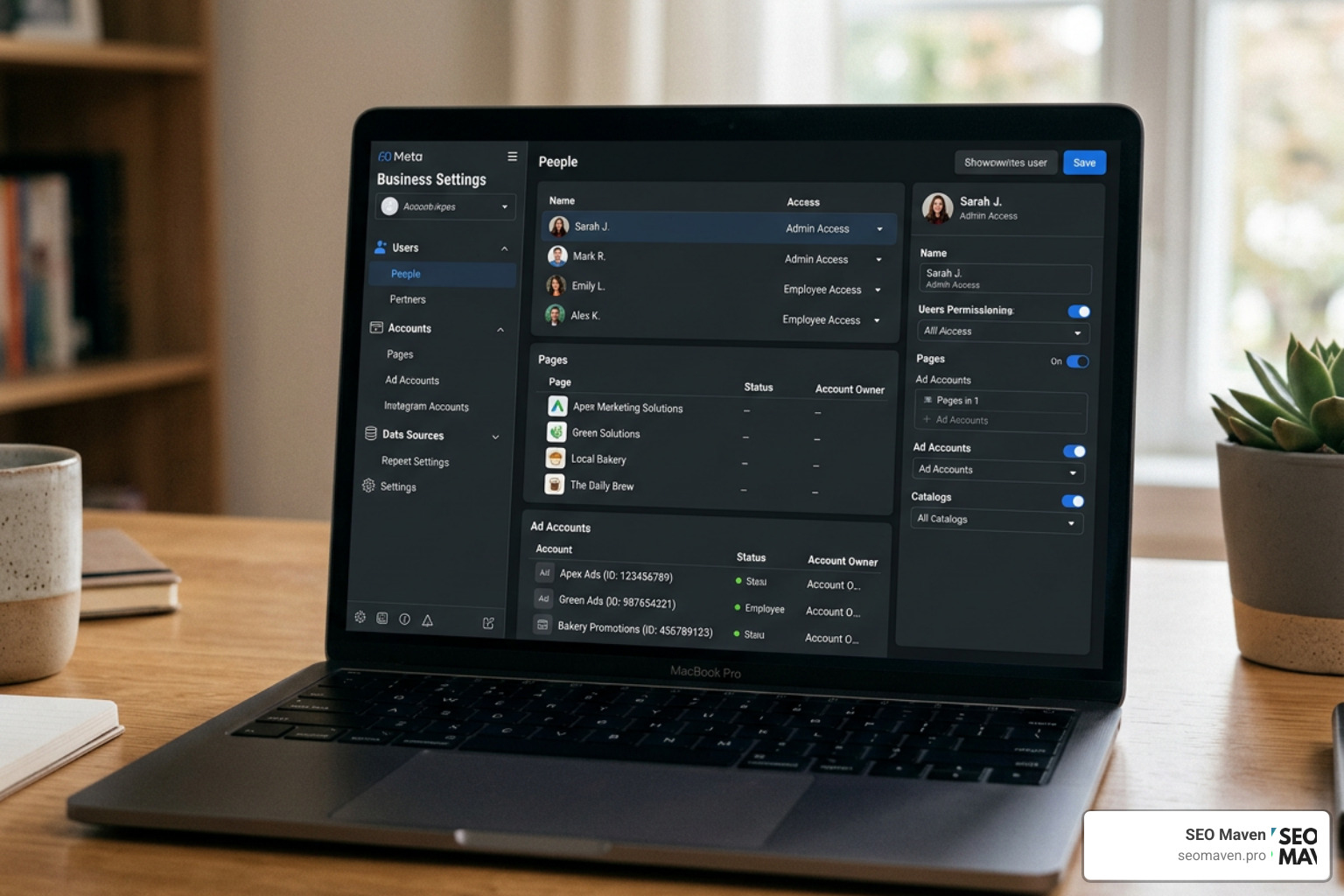
Under Business Settings > Users > People, you can invite team members via their email addresses and assign them one of two primary roles:
- Admin Access: Full control over the business settings, including the ability to add or remove users, delete the Business Manager, and modify financial details.
- Employee Access: Limited access to view settings and work only on assigned assets (such as specific Pages or ad accounts).
For software, automation tools, or third-party integrations, Meta utilizes System Users. As outlined in the Support – Business Management APIs documentation, a system user represents a machine or software program taking programmatic action on behalf of your business, rather than a real person. This keeps your software integrations highly secure, isolated, and governed by specific rate limits grouped by ad account.
Managing Billing, Payments, and Credit Lines
To run ads, you need a healthy payment setup. Within Business Settings, under Payment Methods, you can add credit cards, debit cards, or link PayPal accounts.
For larger businesses or agencies managing multiple accounts, Meta offers monthly invoicing and credit lines. Under this setup, you can utilize features like Dynamic Credit Allocation (DCAF), which automatically distributes your available credit line across active ad accounts every 30 minutes based on spend and demand.
Managing client budgets and shared agency credit lines requires a strategic approach. To learn how to structure these financial assets without taking on unnecessary liability, explore our Meta Ads Agency Playbook 2026.
Troubleshooting Access Issues and Resolving Account Bans
Nothing halts your digital growth quite like a sudden account restriction or access error. In an era of automated compliance sweeps, even rule-abiding business owners in South Florida can wake up to find their accounts restricted.
To stay ahead of data policy changes that could impact your compliance status, read our guide on Meta 2025 Data Restrictions.
Resolving Bans and Restrictions in Meta Ads Business Manager
If your ad account or Business Manager is restricted, do not panic. Your first step is to visit the Account Quality dashboard within your business settings. This area will outline the exact policy violation or security flag that triggered the restriction.
If the restriction was a mistake, you can appeal. For manual appeals, follow the prompts in the Account Quality dashboard to verify your identity (often by uploading a business license or government-issued ID) and request a review.
For agencies or developers managing multiple accounts at scale, Meta provides programmatic options. According to the Appeals APIs – Business Management APIs guidelines, you can submit appeals programmatically using a User Personal Access Token or a Parent BM Admin System User Access Token. You can appeal up to 50 entities (ad accounts or Business Managers) at a time using specific POST requests (such as /ad_review_requests). Once the audit team reviews your request, your parent Business Manager is notified of the final decision.
Why Can’t I Access My Ad Account?
If you log in and find your campaigns are greyed out or your ad accounts are missing, it is usually due to one of three common issues:
- Wrong Account Selected: Check the dropdown menu in the top-left corner of Ads Manager. It is easy to accidentally view your personal ad account instead of your business ad account.
- Missing Permissions: Ensure your Business Manager admin has explicitly assigned your user profile to the specific ad account under Business Settings > Accounts > Ad Accounts > Assigned People.
- Business Verification Required: Meta frequently pauses ad delivery or restricts access if a business has not completed its basic business verification process. Navigate to the Security Center in your Business Settings to check your verification status.
Frequently Asked Questions
What is the difference between a standard user and a system user?
A standard user represents a real human being who logs into Meta using their personal Facebook credentials to manage pages, build ads, or review reports. A system user represents a software application or programmatic script making API calls on behalf of your business. System users are assigned secure API tokens instead of passwords, ensuring higher security for third-party integrations.
Can I manage multiple client accounts under one Business Manager?
Yes. If you run an agency, you should use the Partners feature in Business Settings to request access to your clients’ Pages and ad accounts, rather than claiming ownership of them. This keeps the client as the ultimate owner of their assets while granting you secure, professional access.
If you are a business owner in South Florida looking for local expertise to handle your campaigns, you can check out Meta Ads (Facebook & Instagram) Management in Fort Lauderdale or explore our dedicated Meta Ads Agency services to see how we help businesses scale.
How do I view Instagram-specific performance data?
By default, Ads Manager aggregates your performance data across all of Meta’s platforms (Facebook, Instagram, Messenger, and Audience Network). To isolate your Instagram metrics, open your campaign reports, click the Breakdown button in the top-right corner of your reporting table, select By Delivery, and click Placement or Platform. This will split your metrics to show exactly how your ads performed on Instagram Stories, Reels, and the main Instagram Feed. For more tips on maximizing your creative performance on this platform, read our guide on How to Win at Instagram Advertising Using Meta.
Conclusion
Mastering the meta ads business manager is the foundation of any successful digital advertising strategy. By properly structuring your assets, managing team permissions securely, and understanding how to navigate the platform’s technical features, you protect your digital footprint while setting your campaigns up for scalable growth.
At SEO Maven, we are a boutique digital marketing agency based in South Florida, serving businesses in Hollywood, Fort Lauderdale, Miami, and Aventura. We focus on combining high-impact SEO, content marketing, and paid Meta advertising strategies to deliver maximum ROI for our clients. We help small businesses achieve more with less by eliminating guesswork and building highly optimized, revenue-driven campaigns.
Ready to take your paid advertising to the next level without the administrative headache? Partner with a Meta Ads Agency today, and let us build a high-performing strategy customized for your business.