Why Ad Manager Meta Is the Starting Point for Any Serious Paid Social Strategy
If you’re trying to figure out whether ad manager meta is the right tool to grow your business on Facebook, Instagram, Messenger, or WhatsApp — here’s the short answer:
Meta Ads Manager is the single platform where you create, manage, and measure ads across all of Meta’s apps. It’s free to access and built for businesses of any size.
Quick answers to common questions:
- What is it? A centralized dashboard for running paid ads across Facebook, Instagram, Messenger, and WhatsApp
- Who is it for? Any business — from solo operators to large brands — that wants to reach people on Meta’s platforms
- How do you access it? Log in at adsmanager.facebook.com using a Facebook or Instagram account
- What can you do with it? Build campaigns, target audiences, set budgets, track results, and optimize performance — all in one place
- Is there a mobile version? Yes — the Meta Ads Manager app is available on iOS and Android for managing campaigns on the go
For small business owners in South Florida — where competition for attention is fierce and every marketing dollar counts — knowing exactly what this tool does (and what it doesn’t) can be the difference between wasted spend and real growth.
Meta’s advertising ecosystem reaches billions of people daily. But the platform has a learning curve, and jumping in without a clear picture of how it works is one of the most common and costly mistakes advertisers make.
This guide cuts through the noise. Whether you’re evaluating Meta ads for the first time or trying to get more out of a struggling campaign, you’ll find clear, practical answers here.
I’m Fernando Larez, a marketing professional with hands-on experience running campaigns through ad manager meta across multiple industries — from local service businesses to e-commerce brands. In the sections ahead, I’ll walk you through everything you need to know to use the platform effectively and avoid the pitfalls that trip up most new advertisers.
What ad manager meta actually is and who it’s for
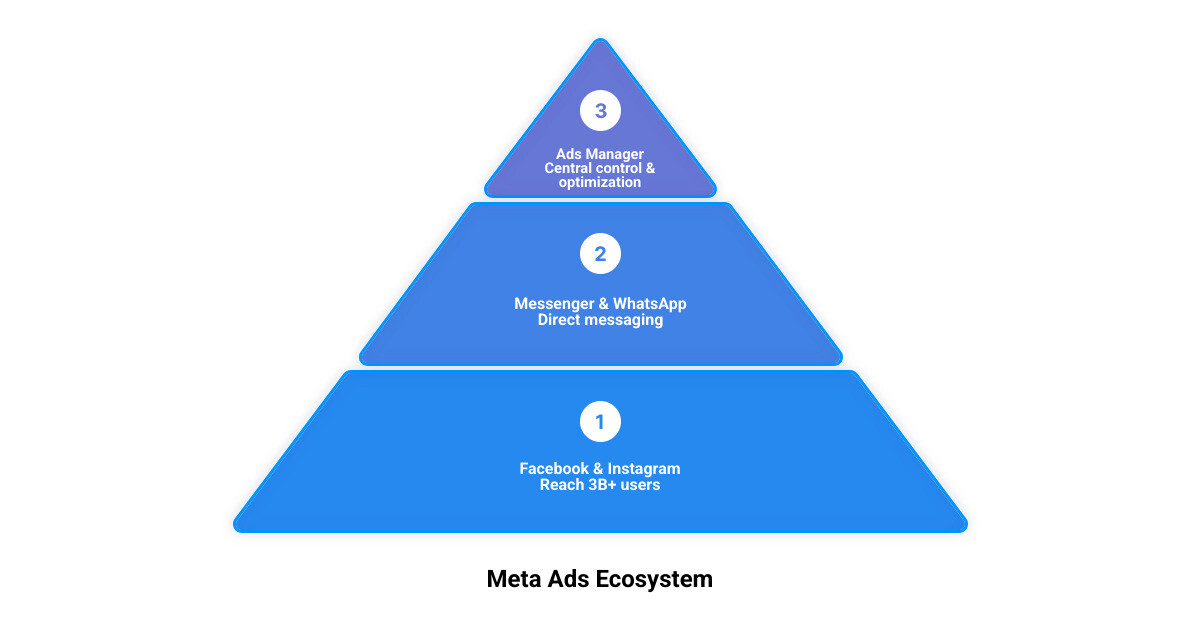
At its core, ad manager meta is the control center for paid advertising across Meta’s platforms. That includes Facebook, Instagram, Messenger, WhatsApp, and related inventory such as Audience Network in supported cases. If your goal is to reach the right people, spend money intentionally, and see what results you got, this is the tool.
You can learn the official overview in About Meta Ads Manager | Meta Business Help Center and access the broader business environment through Meta for Business (formerly Facebook for Business).
Meta Ads Manager in plain English
Plain English version: it is the dashboard where we build ads, launch them, edit them, pause them, compare them, and judge them a little.
It handles five big jobs:
- Ad creation
- Audience targeting
- Budget control
- Performance reporting
- Optimization recommendations
If you are new, the Account Overview area typically guides setup and surfaces recommended next steps. If you are experienced, the real value is control: bulk edits, duplication, reporting columns, and filtering down to exactly what is working.
What Meta Ads Manager is designed to do
Meta Ads Manager is built to support common business goals such as:
- Awareness
- Traffic
- Engagement
- Leads
- Sales
- App promotion
That means a local service company in Hollywood or Fort Lauderdale can use it to generate leads, while an ecommerce store can use it for catalog-driven sales. Meta increasingly pushes automated workflows and Advantage+ style recommendations to simplify setup and improve delivery. Sometimes that helps. Sometimes it needs adult supervision.
Meta Ads Manager vs Business Suite vs Commerce Manager
These tools overlap, but they are not the same.
| Tool | Best for | Main use |
|---|---|---|
| Meta Ads Manager | Advertisers who want detailed campaign control | Building, managing, optimizing, and reporting on ads |
| Meta Business Suite | Businesses managing day-to-day organic and paid activity | Messaging, posting, inbox, light ad management |
| Commerce Manager | Shops and product catalog management | Catalogs, commerce setup, shop assets |
Ads Manager is where we go when performance matters. Business Suite is more of an all-in-one business workspace. Commerce Manager matters most for product feeds, shops, and catalog-based campaigns.
If you want a more practical walkthrough of the interface, our guide on How to Navigate Meta Ad Manager Without Crying is a good next read.
How to access ad manager meta and set it up correctly
Getting into Ads Manager is easy. Setting it up correctly is where many people accidentally create future headaches.
How to log in to ad manager meta on desktop
You can access the platform through the official Ads Manager entry points, including Ads Manager – Meta for Business – Facebook and the login flow at Meta Ads Manager.
Typical access methods include:
- Facebook login
- Instagram login
- Managed Meta account
- Creating a new account if you do not already have one
Once inside, you may need to select the correct ad account if you manage more than one. This is where permissions matter. Plenty of people think the platform is broken when the real issue is that they are in the wrong business account, wrong Page, or wrong ad account.
Prerequisites before you run your first ad
Before launching anything, we recommend making sure these basics are done:
- Add a valid payment method
- Confirm access to the correct Facebook Page
- Connect the correct Instagram account if needed
- Set up business assets cleanly
- Enable two-factor authentication
- Review any business verification requirements
- Make sure your website tracking setup is ready
That last point is big. If your tracking is messy, your reporting will be messy. And then your “winning campaign” may just be a very expensive illusion.
Common setup mistakes that cause problems later
The most common early mistakes are boring, which is exactly why they are dangerous.
- Missing admin or advertiser permissions
- Launching from the wrong Page
- Forgetting to add or verify payment methods
- Misunderstanding billing thresholds
- Ignoring account security
- Running ads without checking policy requirements
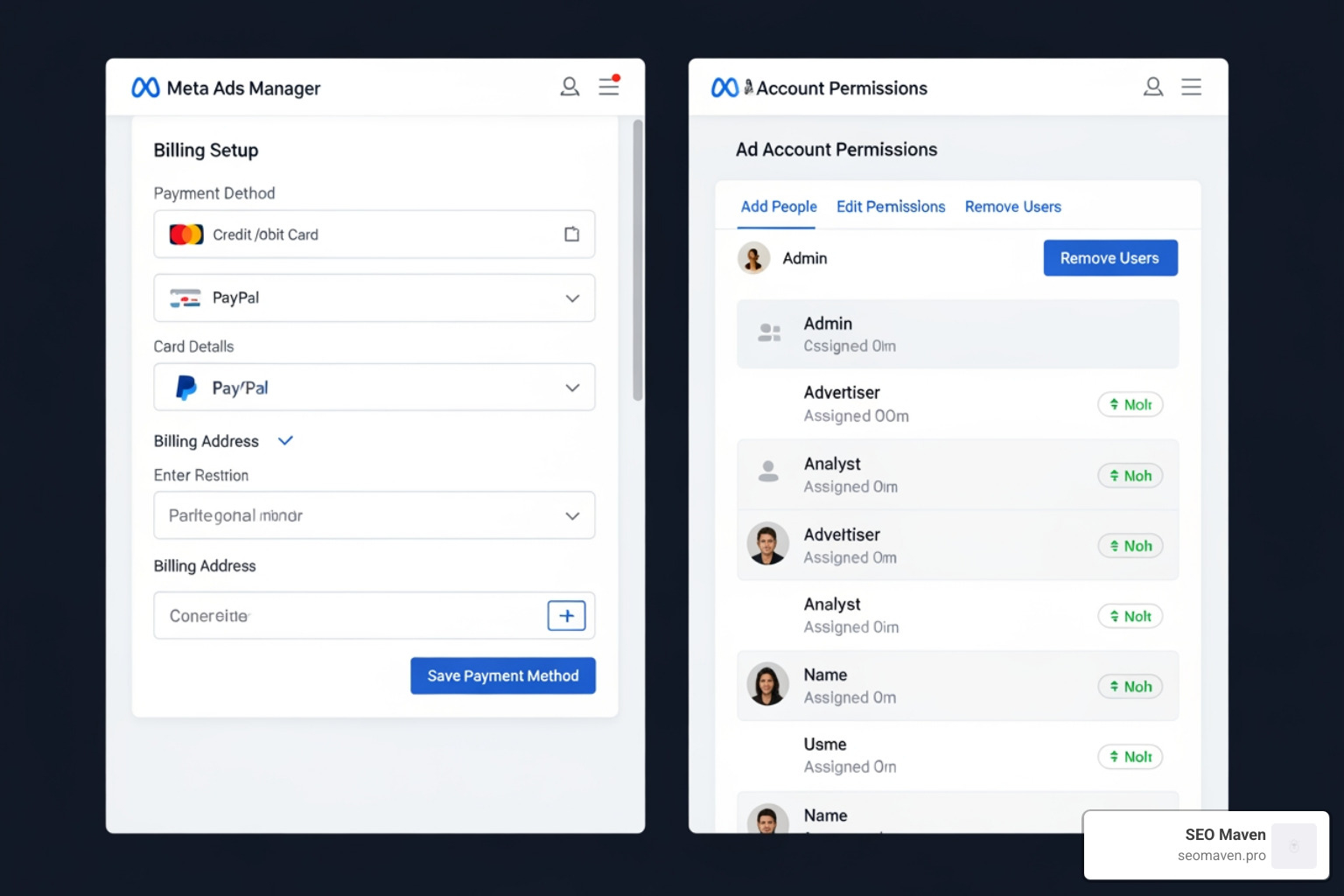
We also see businesses skip security, then get hit with compromised profiles or unauthorized changes. Once an account is hacked, support and recovery can become frustratingly slow. Set up two-factor authentication before you need it, not after.
For a sanity-saving walkthrough, see How to Navigate Meta Ad Manager Without Crying.
Campaign structure and how to build your first campaign from scratch
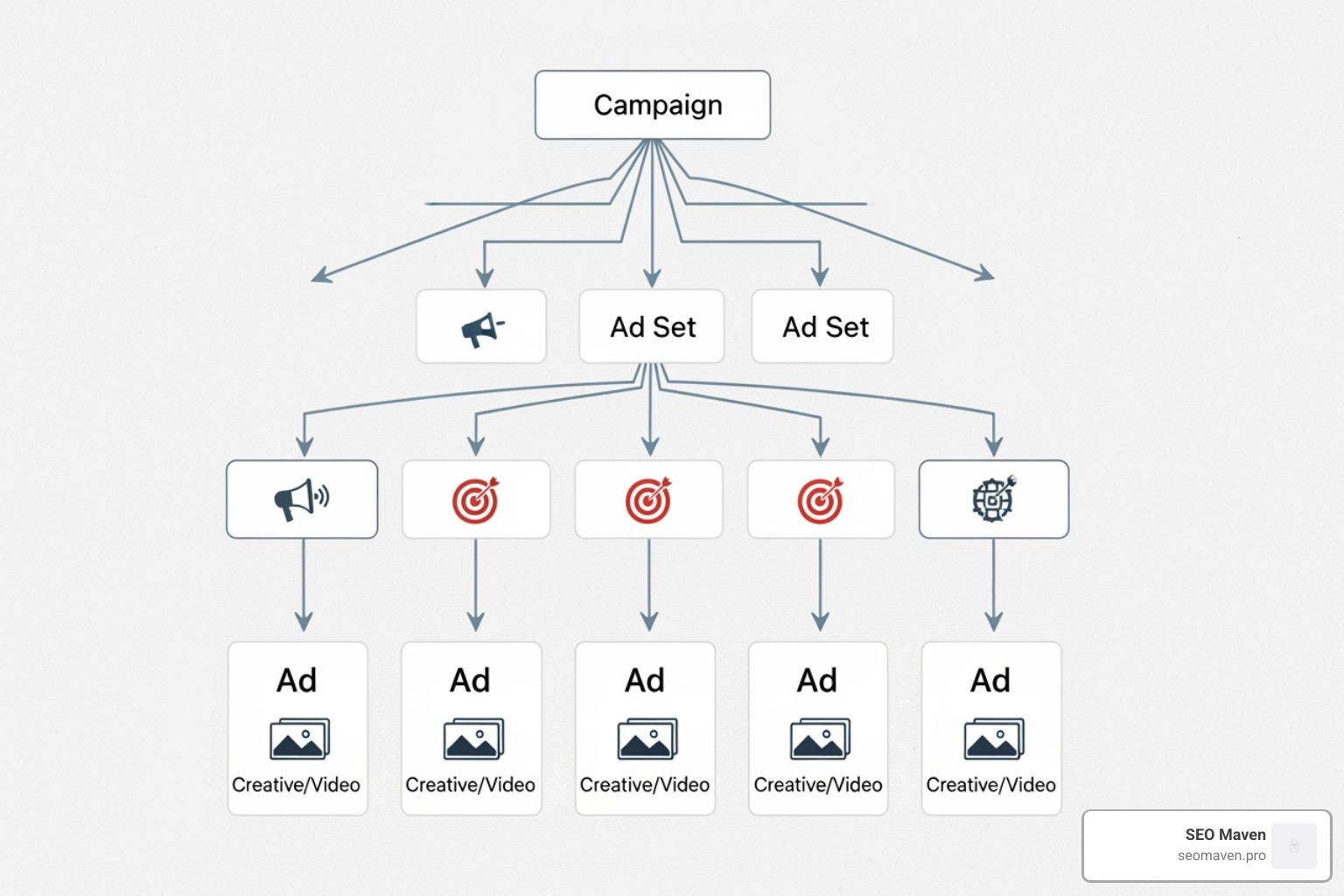
Meta Ads Manager uses a three-level structure. Once you understand that hierarchy, the platform becomes much less intimidating.
The three levels: Campaign, Ad Set, and Ad
Here is the structure:
- Campaign
- Ad Set
- Ad
What each level controls:
- Campaign: your objective, such as traffic, leads, or sales
- Ad Set: your audience, placements, budget, schedule, and optimization settings
- Ad: your creative, copy, media, destination, and format
This matters because many beginners change the wrong thing at the wrong level. If you want a new audience, that usually belongs in the Ad Set. If you want a new video, that belongs in the Ad.
Step-by-step: create a new campaign in ad manager meta
Meta’s official how-to is here: Create ad campaigns in Meta Ads Manager | Meta Business Help Center.
The simplified workflow looks like this:
- Click Create
- Choose your campaign objective
- Select the recommended setup or a more manual workflow
- Name your campaign clearly
- Set campaign budget if using campaign-level budgeting
- Build your Ad Set:
- Choose audience
- Pick placements
- Set schedule
- Select optimization choices
- Build your Ad:
- Choose identity
- Upload image or video
- Write copy
- Add headline and destination
- Review everything
- Click Publish
- Watch the Delivery column for review and approval status
After publishing, ads usually go through a review process against Meta’s advertising standards. Rejected ads are not rare. They are practically a rite of passage.
Budgets explained: Campaign Budget vs Ad Set Budget
This is one of the most important decisions in campaign setup.
Campaign Budget Optimization, often called CBO, places the budget at the campaign level. Meta then distributes spend among ad sets based on expected performance.
Ad Set Budget Optimization, often called ABO, places separate budgets at the ad set level. You control how much each audience or setup gets.
Use Campaign Budget when:
- You want Meta to shift spend dynamically
- You are scaling proven structures
- You want simpler budget management
Use Ad Set Budget when:
- You need tighter control
- You are testing audiences evenly
- You want guaranteed spend by segment
In practice, we usually prefer more control during testing and more automation once winners are clearer.
Daily vs Lifetime Budget and when to use each
Meta supports both daily and lifetime budgets.
Daily budget:
- The average amount you want to spend per day
- Better for ongoing campaigns
- Good when you want stable pacing
Lifetime budget:
- The total amount for the full run
- Useful for time-bound promotions
- Better when you need a fixed end date and schedule control
If you are running a local event, promo, or deadline-based campaign, lifetime budgets can make planning easier. If you are running evergreen lead generation, daily budgets are often cleaner.
Supported ad formats and placements
Meta Ads Manager supports multiple creative formats, including:
- Single image
- Single video
- Carousel
- Collection
Common placements include:
- Facebook Feed
- Instagram Feed
- Facebook Stories
- Instagram Stories
- Facebook Reels
- Instagram Reels
- Messenger
- Audience Network
- WhatsApp in supported experiences
Carousel ads require at least two cards. Collection remains especially useful for visually driven ecommerce experiences, though Meta has continued adjusting where certain format options appear in setup.
If your focus is Instagram-heavy placement strategy, our guide on How to Win at Instagram Advertising Using Meta goes deeper.
Performance tracking, reporting, and AI optimization features
One reason Ads Manager remains the main platform is reporting depth. This is where we answer the uncomfortable question: “Did this actually work?”
The reporting features that matter most
Useful reporting features include:
- Custom columns
- Breakdowns by placement, age, gender, device, and more
- Attribution views
- Side-by-side comparisons
- Scheduled reports
- Real-time performance updates
Core KPIs many advertisers watch:
- ROAS
- CTR
- CPC
- CPA
- Impressions
- Reach
- Frequency
- Conversion volume
The right metrics depend on the goal. A traffic campaign should not be judged exactly like a lead campaign. Yet many businesses still panic over the wrong numbers. We try not to let one weird Tuesday derail strategy.
What Opportunity Score is and how to use it
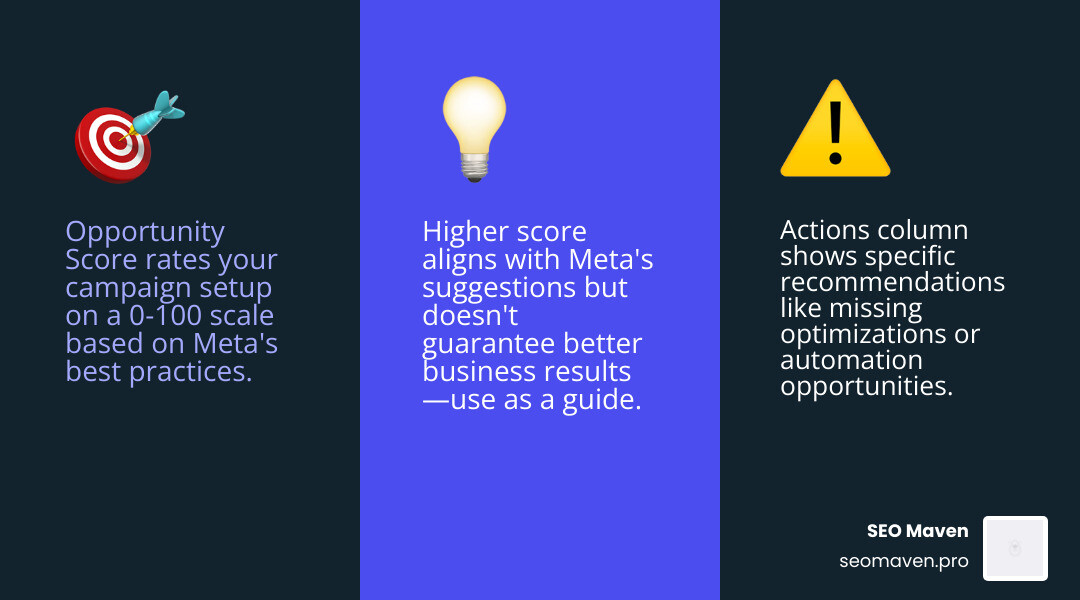
Opportunity Score is Meta’s optimization scoring system. Research from Meta’s Help Center shows it uses a 0 to 100 scale and surfaces recommendations in the Actions column.
It can help identify issues like:
- Missing setup recommendations
- Incomplete optimization settings
- Opportunities to apply automated improvements
- Structural choices that differ from Meta’s recommended approach
It is useful, but not magical.
A higher score does not guarantee stronger business results. It simply means your setup is closer to Meta’s recommended best practices or tested suggestions. Use it as a guide, not a religion.
How Advantage+ and AI features can improve results
Meta has leaned hard into AI-driven tools, especially Advantage+ style setups. These features can help by:
- Expanding targeting automatically
- Recommending campaign setup choices
- Assisting with creative generation
- Predicting where budget may perform better
- Automating more of delivery optimization
In 2026, Meta continues rolling recommended setup flows into objectives like traffic, awareness, and engagement. Some campaigns may also display a campaign score of 100 when using recommended settings.
That said, automation is not a substitute for strategy. You still need:
- Clear offers
- Strong creatives
- Clean tracking
- Smart exclusions
- Policy-safe messaging
Some categories also face restrictions, especially special ad categories and regulated verticals.
Mobile app: manage campaigns on the go
The Meta Ads Manager app is genuinely useful when you are away from your desk. It allows you to:
- Monitor campaigns in real time
- Turn campaigns on or off
- Switch between ad accounts and Pages
- Compare campaigns or ad sets
- Get quick alerts
- Make fast edits
The official business hub is Meta Ads, and if you want the strategic agency side of scaling, see our Meta Ads Agency Playbook 2026.
However, the mobile app does not include every desktop feature. It is best for monitoring and light management, not for deep setup or heavy reporting work.
The real-world pros, cons, and common problems users report
No platform review is complete without talking about what goes wrong in real life.
What users like about the Meta Ads Manager app
The app has strong public ratings:
- 4.5 out of 5 from 47K ratings on the App Store
- 4.3 out of 5 from 508K reviews on Google Play
- More than 10M+ downloads on Google Play
It also has practical strengths:
- Fast access to performance data
- Easy pause and resume controls
- Useful alerts
- Multi-account switching
- Convenience for busy business owners
On iOS, the app size is 104.1 MB and it requires iOS 15.1 or later. For mobile-first business owners, that on-the-go access is the main selling point.
The biggest complaints: billing, disabled accounts, and hacked profiles
The recurring frustrations are also very consistent:
- Duplicate or confusing charges
- Card failures or fraud alerts
- Disabled ad accounts
- Hacked personal profiles tied to business assets
- Slow or automated support experiences
- Unclear appeal outcomes
These are not small annoyances. If your personal login is compromised and it controls your business assets, the impact can be severe. This is why we keep hammering on security and permission hygiene. It is not paranoia if the billing tab is involved.
How to troubleshoot rejected ads and disabled ad accounts
If an ad is rejected:
- Check the rejection reason in Ads Manager
- Review Meta Advertising Standards
- Edit the ad to remove the issue
- Request review if you believe the rejection is incorrect
- Watch the Delivery or account quality areas for status updates
If an ad account is disabled or restricted:
- Check Account Quality and notices
- Confirm whether the issue is policy, payment, or identity-related
- Audit payment methods and retry failed balances if needed
- Complete any requested verification
- Secure your account with password resets and two-factor authentication
- Remove suspicious users or unauthorized access
- Submit an appeal where available
If you are dealing with data and tracking changes that affect performance visibility, our article on Meta 2025 Data Restrictions adds useful context.
When Meta Ads Manager is a strong fit and when it isn’t
It is a strong fit when you need:
- Local lead generation
- Ecommerce promotion
- Cross-platform reach
- Fast creative testing
- Granular reporting
- Flexible budgeting
It is less friendly when:
- You want a zero-learning-curve platform
- You need hand-holding support for every issue
- Your business has weak creative assets
- Your internal security and permissions are disorganized
In other words, the platform is powerful, but it rewards discipline.
Frequently Asked Questions about ad manager meta
Here are quick answers to the questions we hear most often.
- What is Meta Ads Manager? The central tool for creating, managing, and measuring ads across Meta platforms.
- How do I access it? Log in with Facebook, Instagram, or a managed Meta account.
- What are the three levels? Campaign, Ad Set, and Ad.
- Can I use it on mobile? Yes, but the app is lighter than desktop.
- What budget types exist? Campaign Budget or Ad Set Budget, plus Daily or Lifetime Budget.
- What ad formats are supported? Single image, video, carousel, and collection, with multiple placements across Meta apps.
- What is Opportunity Score? A 0-100 optimization score with suggested improvements.
- What goes wrong most often? Rejected ads, payment issues, restricted accounts, and hacked profiles.
How do I know whether to use Campaign Budget or Ad Set Budget?
Use Campaign Budget when you want Meta to distribute spend across ad sets automatically and prioritize likely winners. Use Ad Set Budget when you need more precise control, especially for testing. As a rule, tighter testing usually favors ABO, while broader scaling often benefits from CBO.
Can I create and manage ads only from the mobile app?
You can do a lot from the app, including monitoring performance, making quick edits, switching campaigns on or off, and checking alerts. But for deeper setup, advanced reporting, and more complete controls, desktop Ads Manager is still the better tool.
What should I do first if my ad account is restricted or my ad is rejected?
Start with diagnosis, not panic.
- Check Account Quality
- Read the exact policy or billing message
- Verify payment method status
- Secure your account
- Request review if appropriate
Do not just duplicate the rejected ad and hope Meta forgets. Meta does not have goldfish memory.
Conclusion
If we strip away the complexity, ad manager meta is really about three things: control, visibility, and scale.
It gives businesses one place to launch campaigns across Facebook, Instagram, Messenger, and WhatsApp, choose who sees them, manage spending, and track results. That makes it one of the most important tools in paid social for businesses in South Florida and beyond.
But it is not plug-and-play magic. Success depends on:
- Clean setup
- Correct permissions
- Solid tracking
- Strong creatives
- Good budget structure
- Ongoing optimization
If you are evaluating whether Meta is the right fit, start with the basics, respect the learning curve, and focus on business outcomes instead of vanity metrics.
And if you want help building a smarter paid social strategy around Meta, our team at SEO Maven can help connect the dots between targeting, creative, landing pages, and measurable ROI. Explore our Meta Ads Agency page, and if you’re comparing support options more broadly, read How to Pick a PPC Advertising Company That Actually Delivers.
If you also want to understand how Meta fits into a larger acquisition mix, these may help:
The short version? Meta Ads Manager is powerful, sometimes annoying, often worth it, and far more effective when used with a plan.